You have seen n8n come up. On LinkedIn, or through a colleague who "quickly built something" so that new enquiries now land in the CRM by themselves. You want that too, but where do you start: cloud or self-hosted, and with which process? And how do you keep it from becoming a hobby project that stalls after three weeks?
This article is for owners and operational people in small and medium-sized businesses, not for developers. We host and monitor n8n for clients and see every week what goes right and wrong in the first weeks. That is what this piece is about: the decisions of week one, a first workflow you build in an hour, and the six things beginners skip and regret in month three. Button names are those of n8n 2.37, September 2026.
n8n is software that connects your systems and runs recurring work automatically. On a canvas you place a series of blocks one after the other: when this happens, do that. A new enquiry on the website, then a row in the CRM, then an email to sales. Such a series is called a workflow. n8n runs it as soon as the first step occurs, at night and at weekends too.
The difference with Zapier and Make: n8n is open source, you can run it on your own server, and you do not pay per step but per run of a whole workflow. That makes it a good fit for processes with many steps and sensitive data. There are more than 500 ready-made integrations, from Google Sheets to HubSpot and Exact Online, and anything with an API can be connected as well. Since December 2025, n8n runs on version 2.
Four terms you need:
How we use n8n for clients is on our page about n8n AI. This piece is about the first week.
Most first n8n projects do not fail on technology but on the choice of process. Someone starts with the most exciting idea, an AI agent that handles the whole inbox, and gets stuck on the exceptions. Start small and pick something that meets four conditions:
Three examples that almost always qualify:
Not sure which process to pick? Get in touch and we will look at your situation together, free of charge.
This is the first real decision, and many articles make it bigger than it is. You can switch later: a workflow can be exported as a file and imported somewhere else. So pick whatever works fastest right now.
n8n hosts it for you, on servers in Frankfurt. You create an account and are building within five minutes. There is a 14-day trial without a credit card, then a monthly subscription. The number of workflows and users is unlimited on every plan; only the executions per month count. For most small and medium-sized businesses, the entry plan is more than enough in the first year.
The Community Edition is free for internal use within your own company. You run n8n in Docker on a rented server. Executions are unlimited and your data never leaves your own environment. The installation itself is a few lines from the n8n documentation: the Docker image is called n8nio/n8n and afterwards n8n runs on port 5678.
What is not included: updates, backups, server security and someone who checks in the morning whether everything is still running. Those hours are the real cost of self-hosting. Count on half a day per month if you take it seriously.
Learn on n8n Cloud or in Docker on your own laptop. If you would rather learn it with a few colleagues at once, we also give n8n training on site, see our page on AI training for companies. As soon as you have a workflow that handles customer data, or that colleagues rely on, hosting becomes a management question: who does the updates, who gets the alert when it stops, where does the data live. Then you deliberately choose Cloud, your own server with someone who manages it, or a partner who does it for you. We do the latter: our clients run on dedicated n8n servers in the EU that we monitor and keep up to date.
We build the first example: an enquiry through the contact form goes into the CRM and the right colleague gets a notification. It takes an hour, even if you have never opened n8n. We walked through these steps on 14 September 2026 in n8n 2.37.

A new workflow in n8n 2.37: everything starts with Add first step.
After logging in, n8n first asks what you want to automate; that is the built-in AI assistant. Skip it for now: click the plus at the top left and choose New workflow. Give the workflow a name right away by clicking on "My workflow". Then click Add first step, search for "form" and choose n8n Form with the trigger On new n8n Form event underneath. The node is then called On form submission. n8n creates a form with its own web address, which is handy for testing. Enter a title and use Add Form Element to add four fields: name, company, email and message. Already have a form on your website? Choose Webhook as the trigger instead and have your web developer point the form at it.
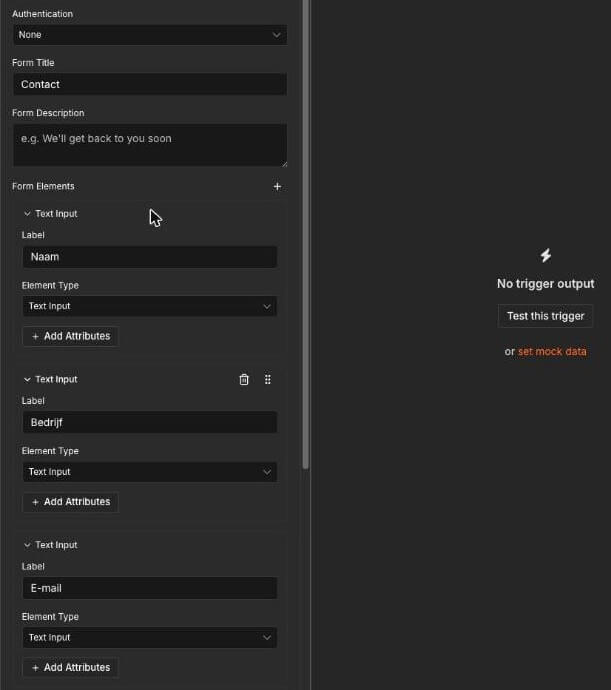
The On form submission trigger with the title and the form fields (Dutch labels in our test).
Click Execute step. n8n opens the test form in a new tab and waits ("Listening for a test form submission"). Fill it in with a made-up enquiry and submit it. The right-hand panel (Output) now shows exactly what came in, as a table. Click the pin at the top right of that panel: n8n confirms with "This data is pinned for test executions". That way you do not have to fill in the form again for every following test.
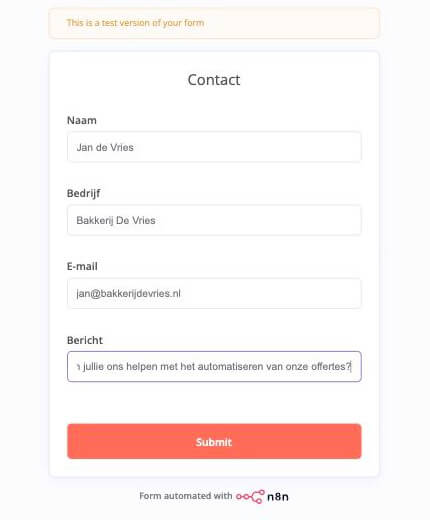
The test form n8n generates, filled in with a made-up enquiry.
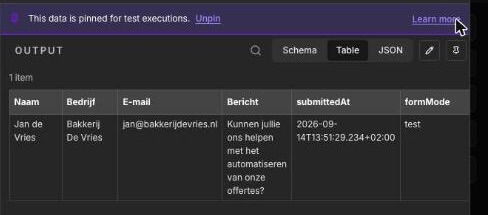
The enquiry in the Output panel, pinned for test executions.
Click the plus after the trigger, search for "If" and add the If node. On the left you see the fields from the form, in the middle the condition. Drag the Company field from the left into the first box (n8n fills in the reference itself), set the comparison via String to is not empty and click Execute step. The enquiry appears under True Branch (1 item): enquiries with a company name go to the "true" branch, the rest to "false". Almost every workflow has a decision like this.
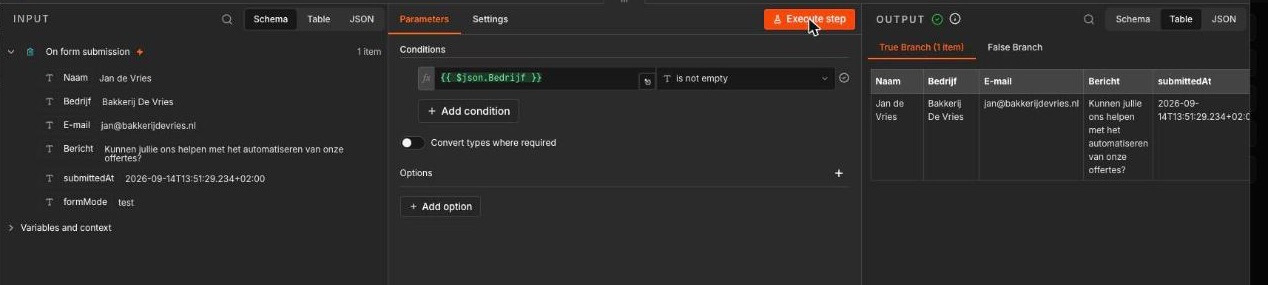
The If node: the form fields on the left, the condition in the middle, the enquiry in the True branch on the right.
After the "true" branch, add your CRM. HubSpot, Pipedrive and most other packages have their own node; pick the action that creates a contact or lead. No CRM? Search for Google Sheets and choose Append row in sheet. At the top of the node is the button Connect to Google Sheets (if a connection already exists, you pick it from a list or click Create new credential). You log in to Google once, choose the document and the sheet, and then drag the fields from the form onto the right columns. That dragging is the best part of n8n: the data on the left, the input fields on the right, and you connect them without typing.
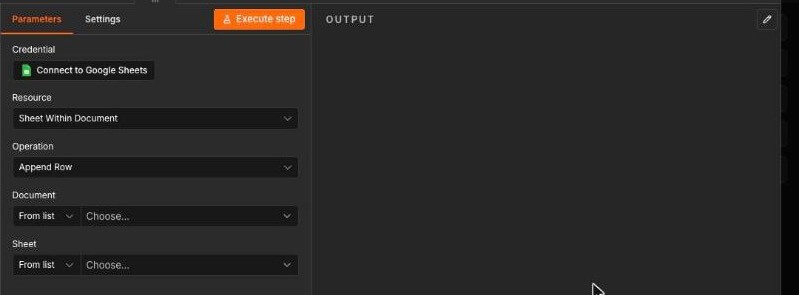
The Google Sheets node with the action Append row in sheet and the Connect to Google Sheets button.
After the CRM, add a Gmail node with the action Send a message (with Microsoft, the node is called Microsoft Outlook). Here too, first Connect to Gmail, then fill in To, Subject and Message, dragging in the name, company and message from the form. If you use Slack or Teams, that works the same way. After the "false" branch, place only this notification, without the CRM, with the subject "Enquiry without company name, please check".
Click Execute workflow at the bottom. Every node gets a green tick when it succeeds, and you can see per node what went in and out. Save with Ctrl+S (Cmd+S on a Mac); there is no separate Save button any more, but n8n does warn you when you leave the page with unsaved work. If everything is correct, remove the pin from the trigger and click Publish at the top right. From that moment the workflow responds to real forms. In n8n 2 this is a deliberate, separate step: saving stores your changes, Publish puts them live, and Unpublish in the same menu takes it offline again. So you can keep working on a version that is not running yet.
You now have a working workflow. At the top next to Editor is the Executions tab; there you will see every run from now on, including the ones where something went wrong.
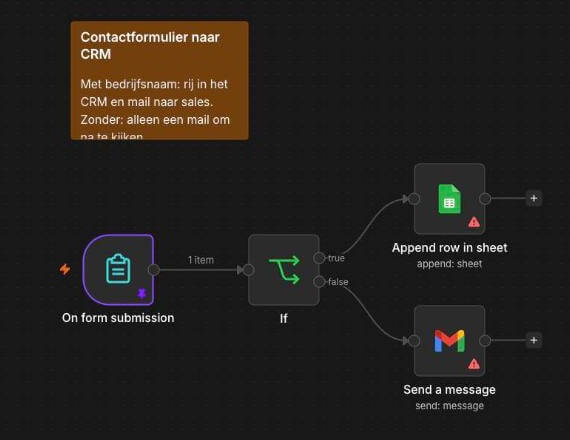
The whole workflow: form, decision, row in the CRM and the email notification.
The workflow above works. Whether your business still relies on it in six months depends on six things we see beginners get wrong most often.
A workflow that fails, fails silently: n8n does not send a notification on its own. Nobody notices that enquiries have not reached the CRM for three days, until sales asks why it is so quiet. So make your second workflow an error workflow right away: trigger Error Trigger, followed by an email or Slack message with the workflow name and the error. Link it to every workflow via the three-dot menu next to the workflow name, Settings, field Error Workflow. It is five minutes of work, and you hear the same day that something has stopped instead of three days later.
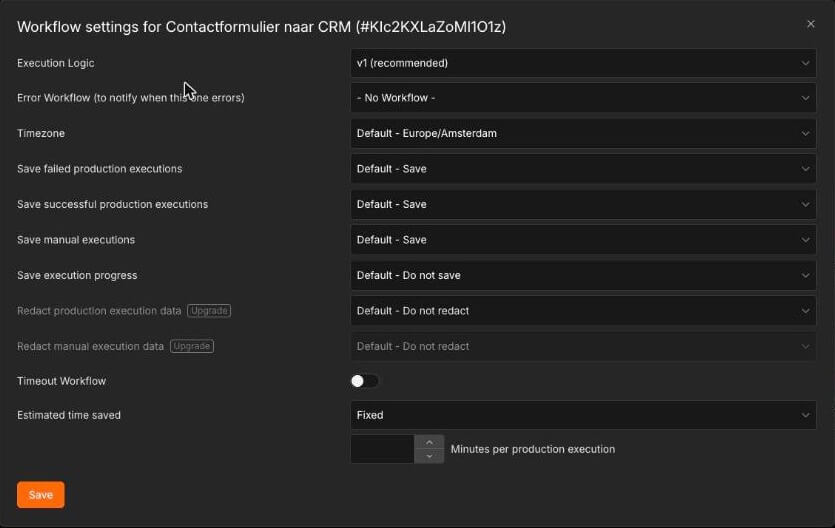
Workflow settings: link the error workflow under Error Workflow.
"My workflow 3" with nodes "Gmail1" and "Gmail2" is a riddle a month later, even to you. Name the workflow after the process ("Contact form to CRM"), name every node after what it does ("Email to sales") and put a Sticky Note on the canvas with two sentences on what the workflow is for and who owns it.
The workflow sends email through the Gmail account of the colleague who built it. That colleague leaves, the password changes, and everything stops. Create separate accounts for n8n or use a functional address such as automation@yourcompany.com, and record who manages the credentials.
After three months the first workflow is 40 nodes big and nobody dares to touch it. Split it in time. n8n can start one workflow from another (the Execute Sub-workflow node), so build small building blocks: one workflow that creates a contact, one that sends a notification. You reuse those in every next process.
What happens to an enquiry that fits neither branch? Who reads the error emails, and within how much time? Write it down, even if it is one line, because without that agreement a missed enquiry sits there until someone happens to look.
n8n releases a new version almost every week. If you self-host and do not update for a year, you end up with security holes and one big painful jump. Schedule monthly updates, back up the database and test the most important workflows after every update. If you do not want to do this yourself, that is a good reason to choose Cloud or a managed server.
Many people start with n8n because of AI. Still, our advice is to add AI only when the workflow works without it. First the process has to be right: the correct data in the correct place, with an alert when it fails. After that you can make one step smarter.
A good first AI step in the workflow above: let a language model summarise the message from the form in one sentence and give the enquiry a label, such as "quote", "question" or "job application". You do that with the AI Agent node or, more simply, with Basic LLM Chain. You connect a model (OpenAI, Anthropic, or via OpenRouter so you can switch) and write a five-line instruction. The model cost per enquiry is small. What counts is the time it saves.
Two rules for every AI step. First: a person stays ultimately responsible. Let AI summarise and sort, and let people decide on anything that touches a customer. Second: be open about AI. The transparency rules of the EU AI Act apply since 2 August 2026. If the workflow talks to customers or produces texts for the outside world, that has to be recognisable. How to organise that is in our article on AI compliance under the EU AI Act.
Want an estimate for your situation? Email info@synai.eu or book a call through the contact form. Half an hour is enough to know whether it is worth it.
Doing it yourself is fine when one person automates one process, a failure is not a big deal and that person keeps time for it. Many of our clients started that way.
Have it done, or do it together, as soon as one of these is true:
Doing it together comes in two forms. In an n8n training, you build the first workflows for your own processes with a trainer, so your team can carry on by itself afterwards. If your team first needs a shared understanding of AI, start with an AI workshop for businesses in which we decide together which process goes first.
If you leave it to us, we map the process, build the workflows in n8n with human checks where they belong, and run them on a dedicated n8n server in the EU that we monitor and keep up to date. Your team works with them from the SynAI Platform, without having to be in n8n itself. Read more on our page about our n8n specialist, or email info@synai.eu.
The software is: the Community Edition is free if you host it yourself and use it internally within your own company. The costs are in the server and above all in managing it. n8n Cloud works with a monthly subscription and has a free 14-day trial.
No. The workflow in this article is built entirely by clicking and dragging. Knowing JavaScript helps with tricky data manipulation, but you get far without it. What does help: understanding how your own process runs and where the exceptions are. If you want to get going faster, an n8n training with your team is an option.
Zapier is fastest for a simple link between two apps. Make sits in between. n8n is strongest for processes with many steps, custom logic, AI and sensitive data, and at higher volumes, because you do not pay per step. If you want to self-host, n8n is the only one of the three that offers that choice.
That depends on where it runs and who manages it. n8n Cloud runs in the EU and self-hosting keeps everything within your own environment. Since version 2, code steps run isolated by default. The biggest risks are not in n8n itself but in credentials on personal accounts, postponed updates and workflows without error alerts, the points in the list above.
A first working workflow like the one above: an hour, and that is genuinely true. But that is a demo, not a system. The work is in what comes next: connections that keep working when a password changes, exceptions you only run into after weeks, an error workflow, a server someone maintains, and the second and third process that get added. Anyone learning this alongside their normal job easily spends weeks to months on it, with the moments in between when something stops without anyone noticing. That is why the line between doing it yourself and having it done is drawn above: the first workflow is yours, the reliability is the craft.

 English
 Nederlands